Install the JobRats extension 🐭
It takes 2 minutes and you only do it once. After that it updates on its own.
- 💻 A computer with Chrome (Edge or Brave work too).
- 🔑 Your JobRats account open in that Chrome.
- 📱 It doesn't work on your phone: save this page and open it on your computer.
1. Add to Chrome
Install JobRats in Chrome.
The Chrome Web Store is still reviewing JobRats. Until then, you can install it by hand in 5 minutes.
Install it by hand (5 minutes)Tap the blue «Add to Chrome» button.
 JobRats: postula a empleos por tijobrats.com · ProductivityAdd to Chrome
Drawing: this is how the store page looks. Chrome asks if you want to add it. Tap «Add extension».
It can read and change your data on linkedin.com and jobrats.comAdd «JobRats»?CancelAdd extensionThat permission is so it can search for jobs and apply on LinkedIn for you. It never reads your passwords. Done. Chrome tells you, at the top right, that JobRats was added.
2. Pin the icon
This way the rat is always handy, at the top right of Chrome.
Tap the puzzle piece 🧩 next to the address bar.
Next to JobRats, tap the pin 📌.
JobRats📌3. Connect it to your account
Open Extension settings in the same Chrome and tap «🐭 Connect with one click». That's it.
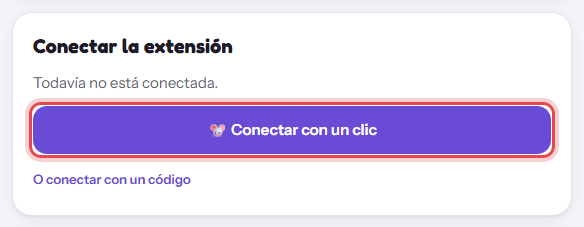
When you tap the rat in the Chrome toolbar, you see this:
JobRatsNo button? Connect it with a code
In Extension settings, tap «Get a code to connect». The code lasts 10 minutes and works only once.
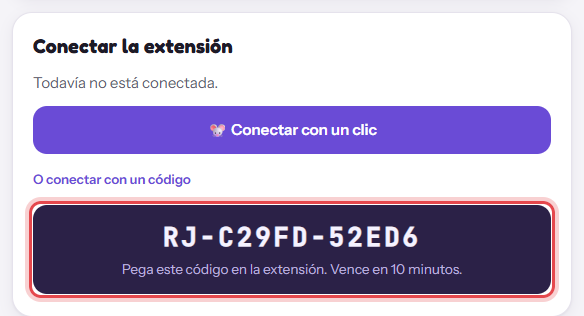
Tap the rat in the Chrome toolbar, paste the code and tap «Connect».
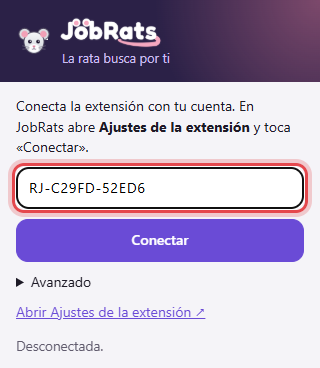
For LinkedIn, stay logged in on that same Chrome. JobRats never asks for your password.
4. What it does on its own, and what it doesn't
- ✅It searches LinkedIn for recent Easy Apply jobs while Chrome is open.
- ✅It searches other job sites from your Chrome. This keeps going even if you turn LinkedIn off.
- ✅It only saves the jobs that fit you in JobRats, and lets you know.
- 🚫It never applies unless you choose. Only to the jobs you tap with «🐭 Apply with the rat»: it gets them ready and you send them with «Send».
- 🚫It never asks for passwords, never writes messages and never changes your profile.
- ⏸️If LinkedIn asks to slow down, the rat pauses on its own until tomorrow.
With the computer off or Chrome closed, the rat doesn't search. It picks up again when you open it.
5. How to turn off the LinkedIn search
Go to Extension settings.
Uncheck «Automatic LinkedIn search» and tap «Save».
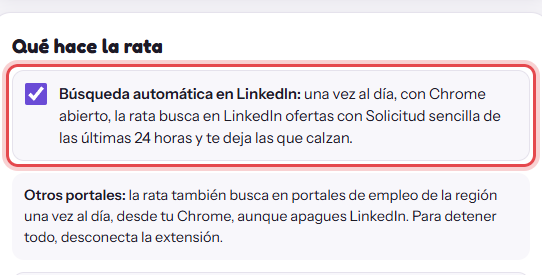
The search on other job sites keeps going. To stop the extension completely, disconnect it or remove it from Chrome.
6. Updates
It updates on its own from the Chrome Web Store: you don't have to do anything. Your settings and your connection stay the same.
If JobRats tells you it's out of date, close Chrome completely and open it again: Chrome brings it up to date.
7. If something goes wrong
I don't see the «Add to Chrome» button
Open it in Chrome (or Edge or Brave) on a computer. On a phone or in Safari, the store doesn't let you add extensions.
It says «Remove from Chrome» instead of «Add»
You already have it. Go on to step 2 to pin the icon.
«Connect with one click» doesn't show up
Make sure you're in the same Chrome where you added the extension, and reload the page. If it still doesn't show up, connect it with the code: it works the same.
The code doesn't work
It lasts 10 minutes and works once. Get a new one in Extension settings and paste all of it, including «RJ-».
I don't see the rat in the toolbar
Tap the puzzle piece 🧩 and pin it with the pin 📌.
The rat says «Paused until tomorrow»
LinkedIn asked to slow down. It's to protect your account. The next day it keeps going on its own.
No new jobs are coming in
Check that Chrome is open and the extension is connected. You can tap «🔎 Search now» in the rat's little window.
Still not working? Write to us in Support.
Not in the store yet? Install it by hand
The Chrome Web Store is reviewing JobRats. Until then, you install it like this (5 minutes) and update it by hand.
Download the extension and unzip the file (Windows: right-click → «Extract All»). Keep the JobRats folder somewhere you won't delete it, for example in Documents.
⬇️ Download JobRats (.zip)Copy this into the Chrome address bar and press Enter:
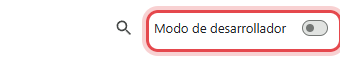
chrome://extensionsTurn on «Developer mode», at the top right.
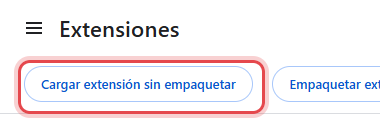
Tap «Load unpacked» and choose the JobRats folder. Then go on to step 2.
To update it when JobRats tells you: download the zip again, unzip it on top of the JobRats folder («Replace») and, in chrome://extensions, tap the ⟳ arrow on the JobRats card.